3DLin the studio
Line
The Line tool draws straight lines anywhere in the 3D view, point after point, on a face, along an edge, from a corner or on the ground. Each line stands the moment you click its end, and lines that close flat become a face.
What it is
The Line tool draws straight lines in the 3D view, one after another. It reads what lies under the pointer before every click: a corner, the middle of an edge, an edge, a face, a guide, the line of an axis through the last point, the prolongation of the last line or a direction square to it. A marker and a word at the pointer (Endpoint, Midpoint, On Edge, On Face, On x axis, Perpendicular, From Point and the others) say what the click will take. Over empty space the point lands on the ground.
A line is not held back until you finish: it stands in the project the moment you click its end, and the next line goes on from there. Lines that cross split each other, and lines that close a flat outline make a face. Drawn on a face of a body, the lines become part of that body: a line from edge to edge splits its face, a closed outline inside a face cuts a face of its own.
When to use it
- To draw an outline in space and pull it into a volume with Push/Pull.
- To split a face of a body into parts you can push or pull one by one.
- To draw the path a face follows with Follow Me.
- To draw construction lines on a face or in the air.
The steps
Take the tool. Press
L, or click Line among the drawing tools.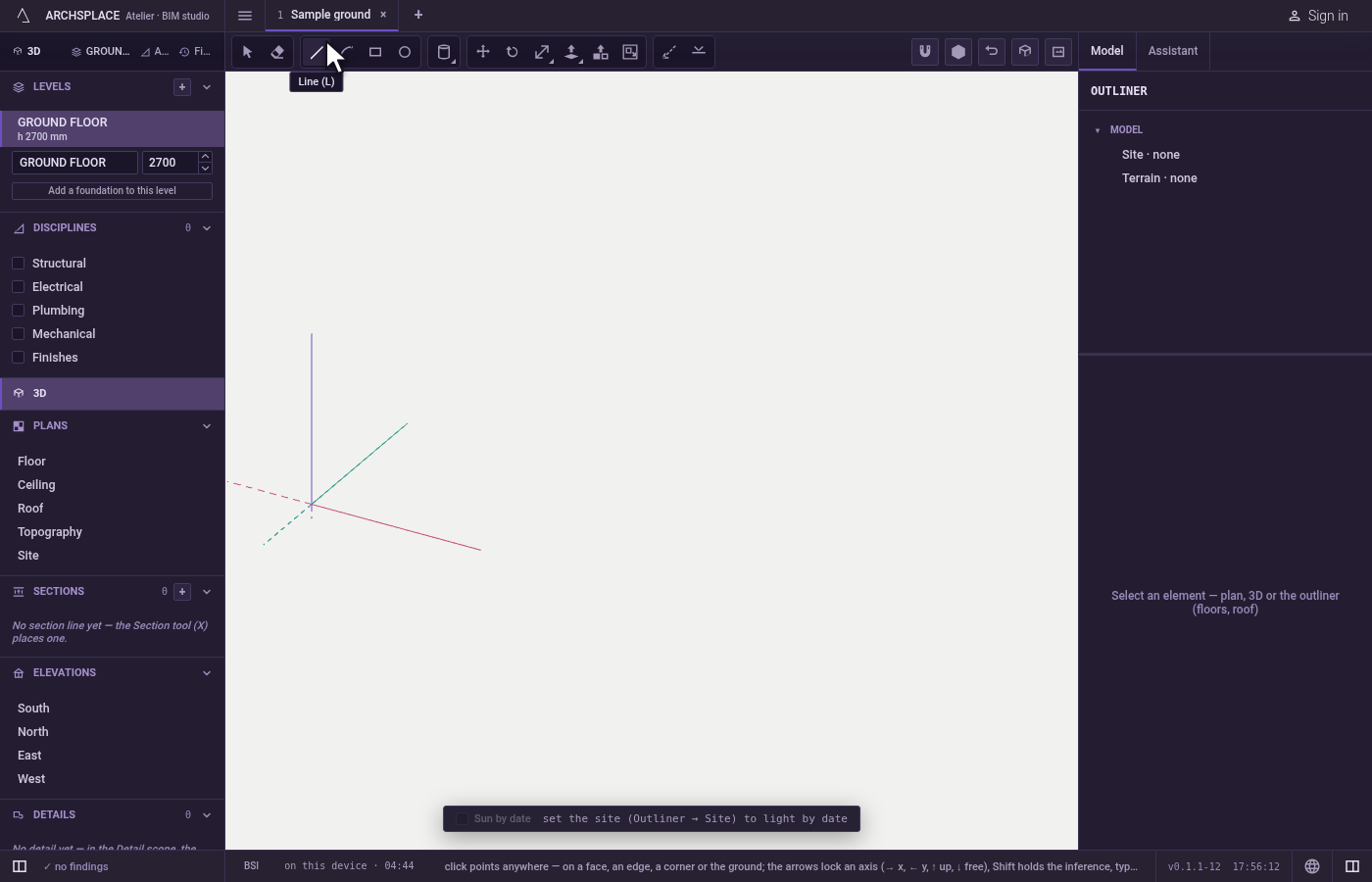
Click the first point. Watch the marker: the click lands exactly on what it names. Over nothing, it lands on the ground.
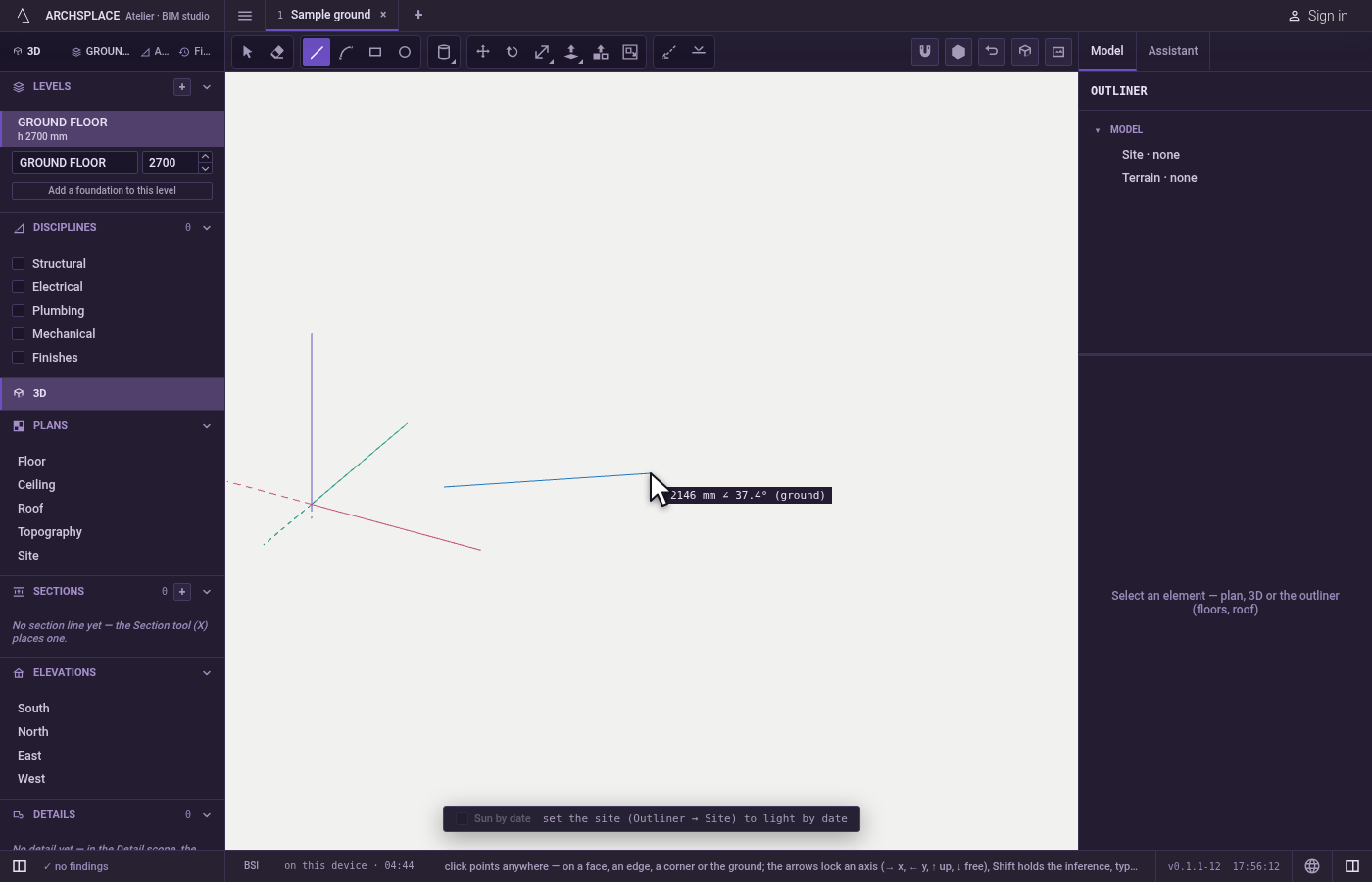
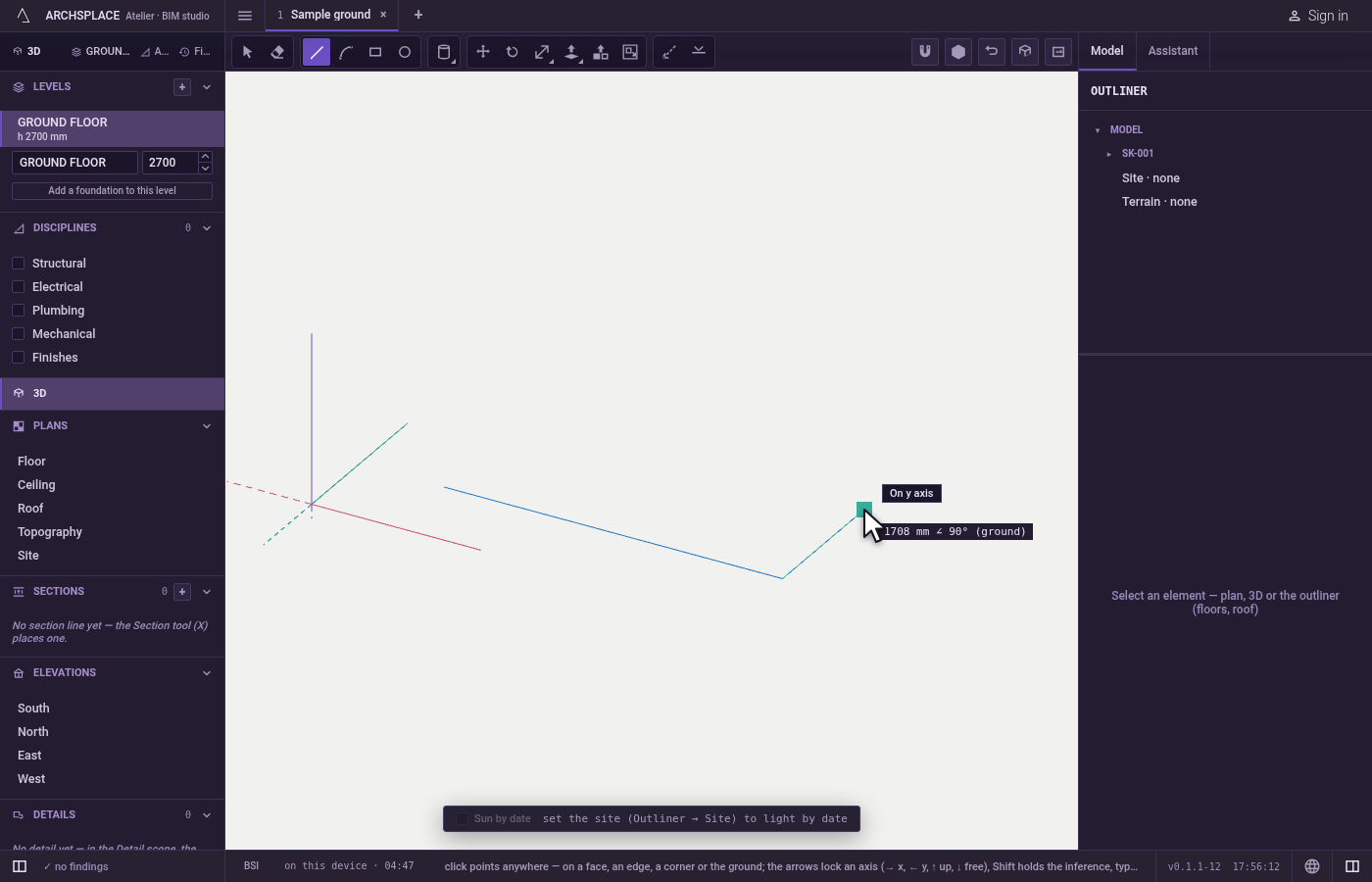
Click the next points. Each click lands one line from the last point. The readout beside the pointer gives the line's length and its angle, measured in the plane of the face you started on, or on the ground.
Hold a direction when you need it. Press
→to hold the x axis,←for the y axis,↑for the vertical, and↓to free it; the hint says which axis is held.Shiftkeeps the inference you see, whatever the distance.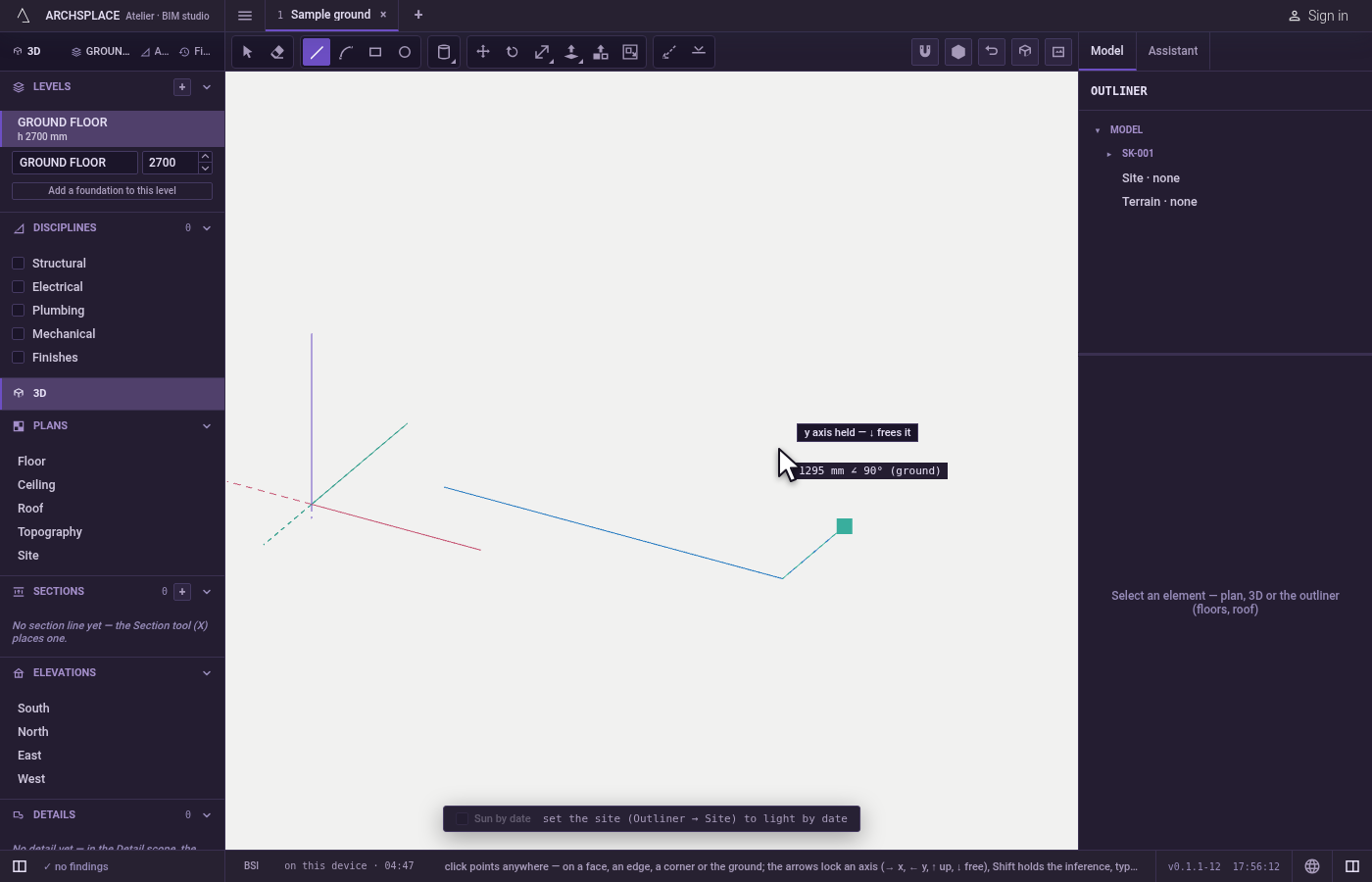
Type a value when you know it. Type a length and press
Enter: the line runs that far towards the pointer. Type2.5<45for a length at an angle, or<45alone to hold that angle until your next click or length.Escapeclears what you typed.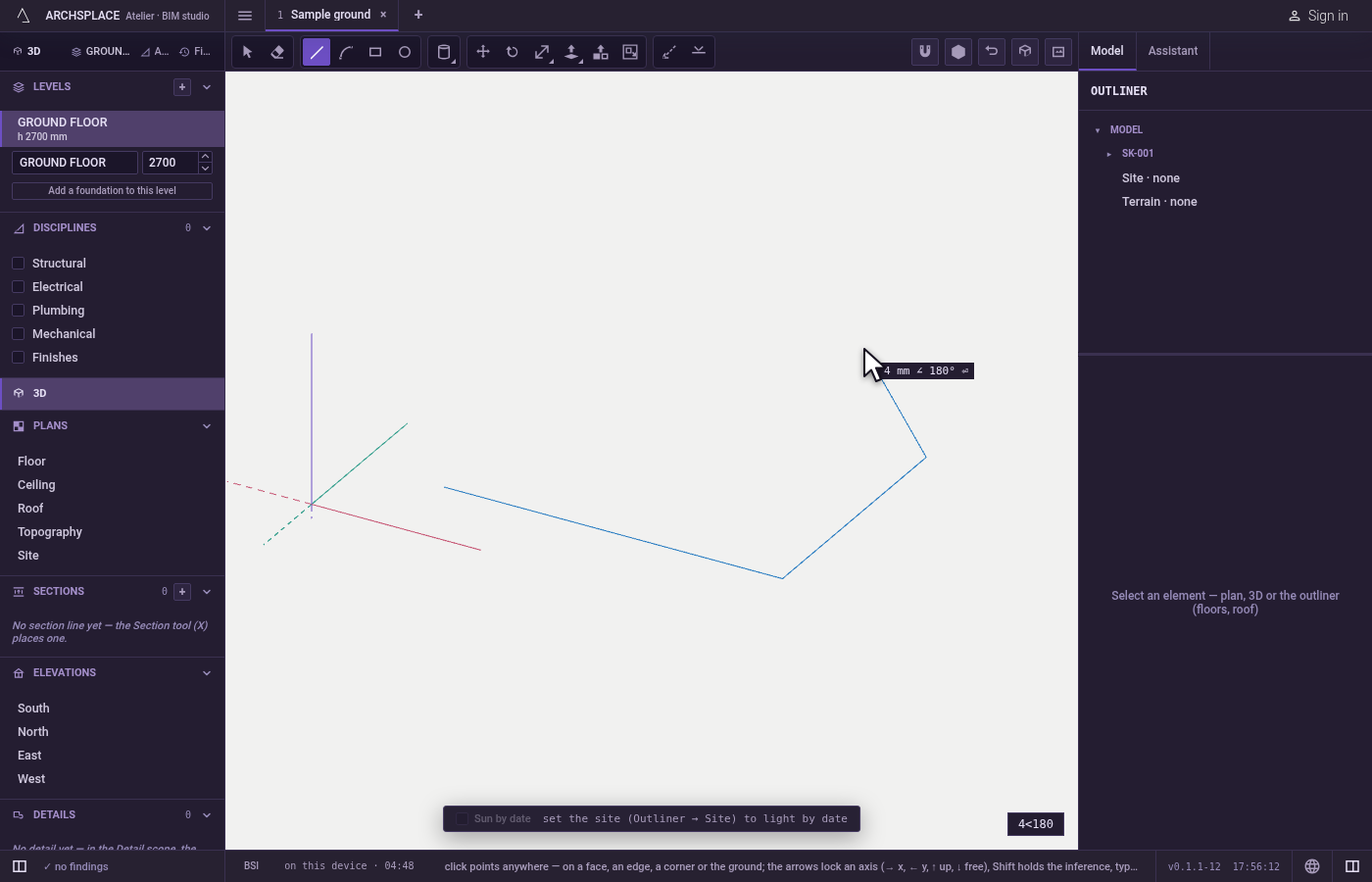
Close or stop. Click back on the first point to close the outline; if it is flat, it becomes a face.
Enter,Escape, the space bar or another tool end the chain where it is; every line already drawn stays.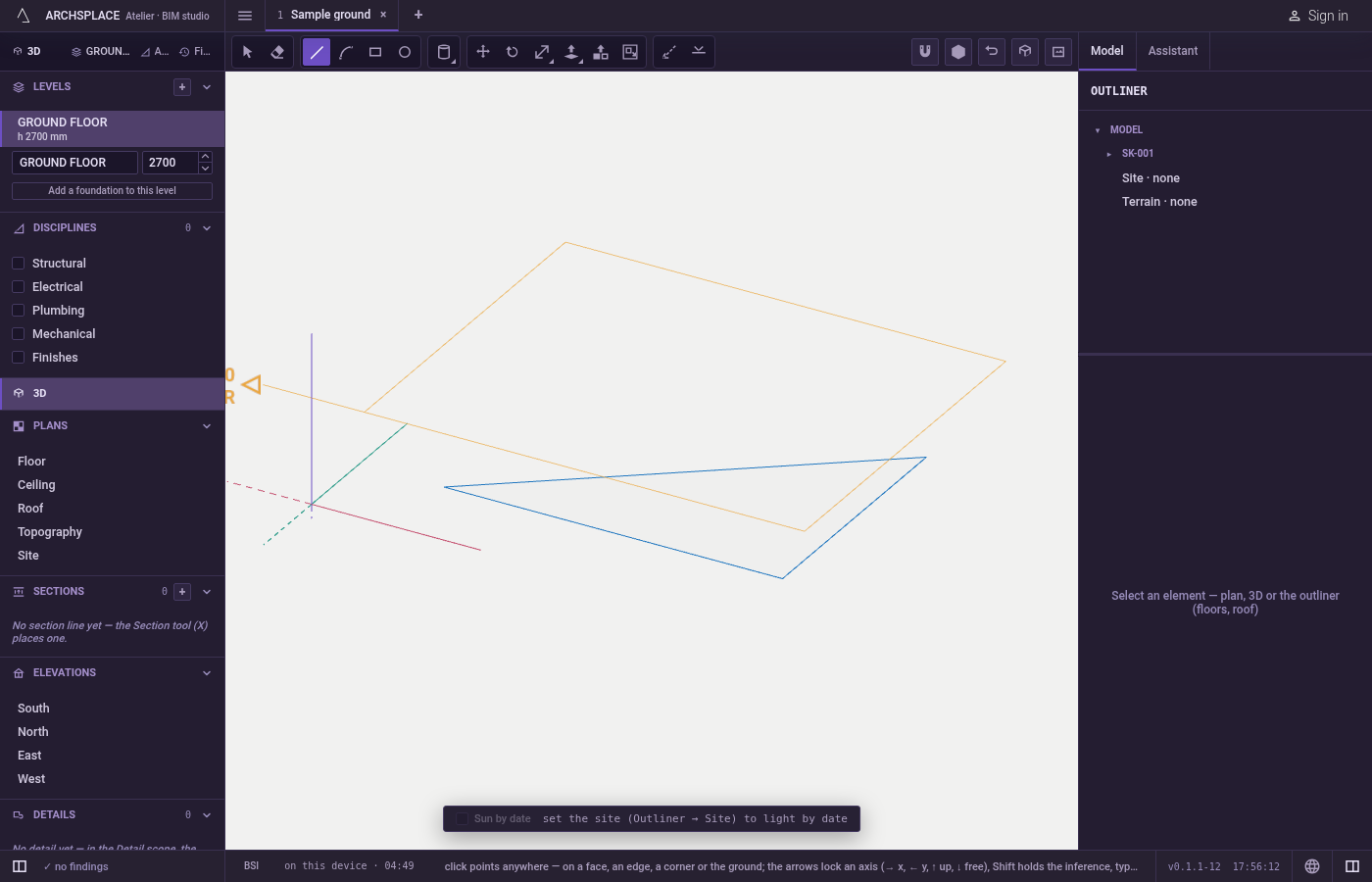
What it refuses
- A typed value that is not a line. Text such as
2.5<or a word is refused with a notice that shows the three forms: a length, a length at an angle, or an angle alone. - A point on the hidden side of a face. Corners and edges behind a surface are not taken through it.
- An arc once the chain has left its plane. When you switch to Arc in the middle of a chain that left the plane it started on, the arc is refused, since it needs one plane to lie in: end the chain and start the arc on a face.
What it writes to the contract
Each line you click is added to the drawn geometry of the model, or of the component you have open, at once and as its own undoable step. Where it crosses or touches other lines they are split at that point, and the faces are found from the closed outlines; a line drawn on a body's face is taken by that body. Nothing is stored for a face itself: it is read from its lines every time.
Common questions
How do I draw a line of an exact length?
Point the direction with the mouse, type the length and press Enter. The line runs exactly that far towards where the pointer shows. Type 2.5<45 for 2.5 at 45 degrees, or <45 alone to hold that direction and click its end.
How do I keep a line on an axis?
Press the right arrow for x, the left arrow for y, the up arrow for the vertical, and the down arrow to free it again. The hint at the pointer says which axis is held.
When does a drawing become a face?
As soon as the lines close a flat outline. Four lines that meet on one plane are a face, on the ground, on a wall or tilted in space, and you can push or pull it.
Do I lose the lines if I press Escape?
No. Every line already stands in the project when you click its end. Escape, Enter, the space bar or another tool only end the chain.