Sections and elevationsAin the studio
Grid in sections and elevations
Grid, in a section or an elevation, places a structural grid axis with one click: the axis runs straight across the cut line at the point you click, and the plan draws it at once. It is lettered when it fixes a position along the plan's x and numbered when it fixes one along y, in the order the axes were placed.
What it is
Grid places a structural grid axis from a section or an elevation, with one click. The axis runs across the cut line: it stands square to the view, through the drawing, at the point along the view where you click. It is the model's own axis, the same the plan's Grid tool places, so every floor plan draws it at once, the walls and columns snap to it there, and the plan's dimension chains read it.
The view decides which way the axis runs, so the tool has no list of options here. Looking north or south, the view runs along the plan's x, and an axis across it is a line of constant x: it takes the next letter, A, B, C, by the number of such axes already placed. Looking east or west, the view runs along y, and the axis is a line of constant y: it takes the next number, 1, 2, 3.
While the tool is in hand, a dashed line stands across the whole drawing at the pointer, and every line the drawing shows pulls the pointer onto its corners, middles and edges, so the axis lands on the face of a wall or the edge of an opening.
When to use it
- Setting out a grid from a facade, on the corners and openings you can see.
- Adding the one axis a section needs to dimension a part of the building.
- Placing an axis through a column or a pier seen in an elevation.
The steps
Open a section or an elevation and press A. Or click Grid in the toolbar. The status bar says to click where the axis crosses the view, and that it is lettered or numbered by its direction.
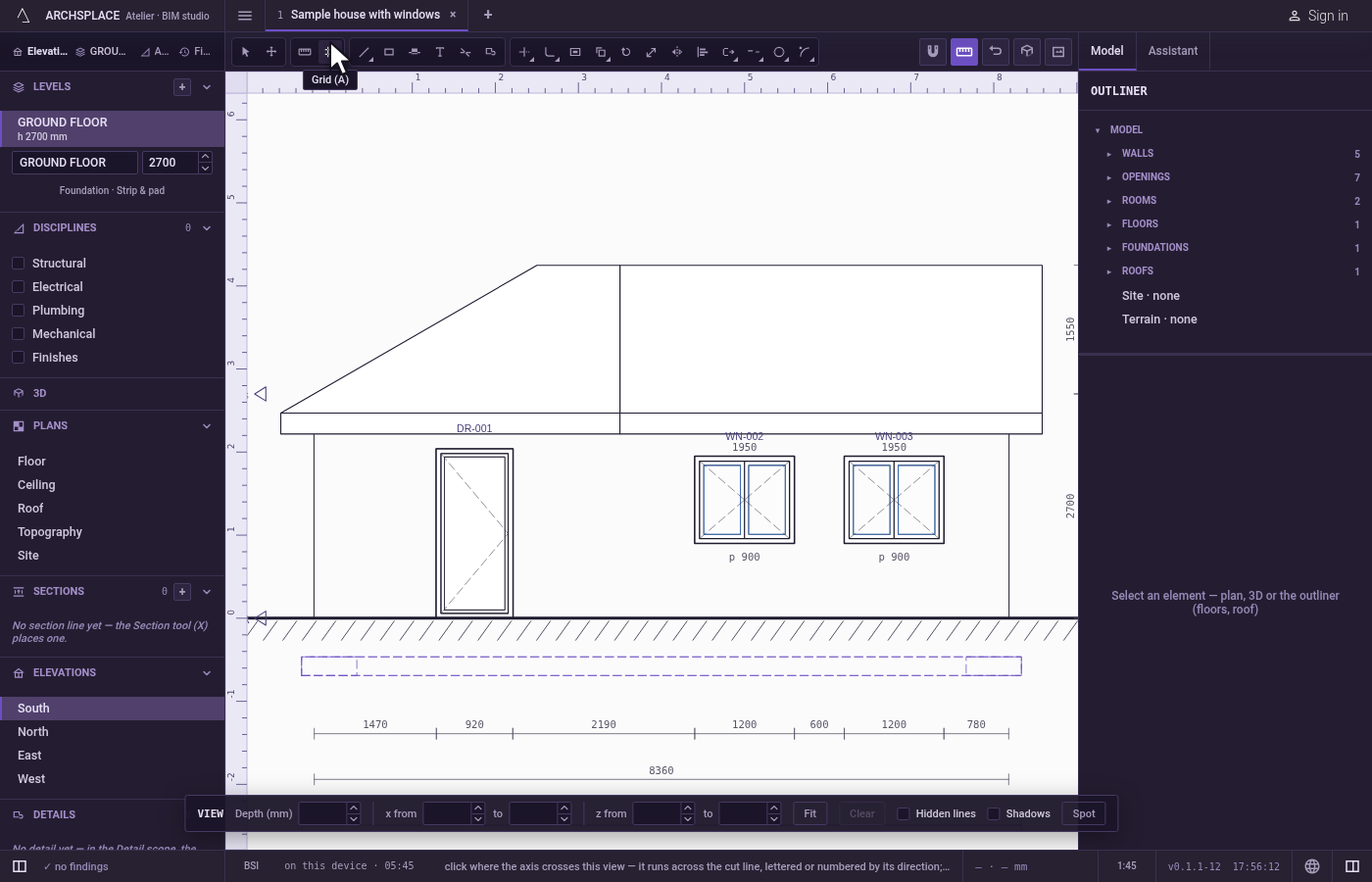
Find the place. Move the pointer over the drawing: the dashed line follows it across the whole view and holds on the corners, middles and edges of the drawing's lines.
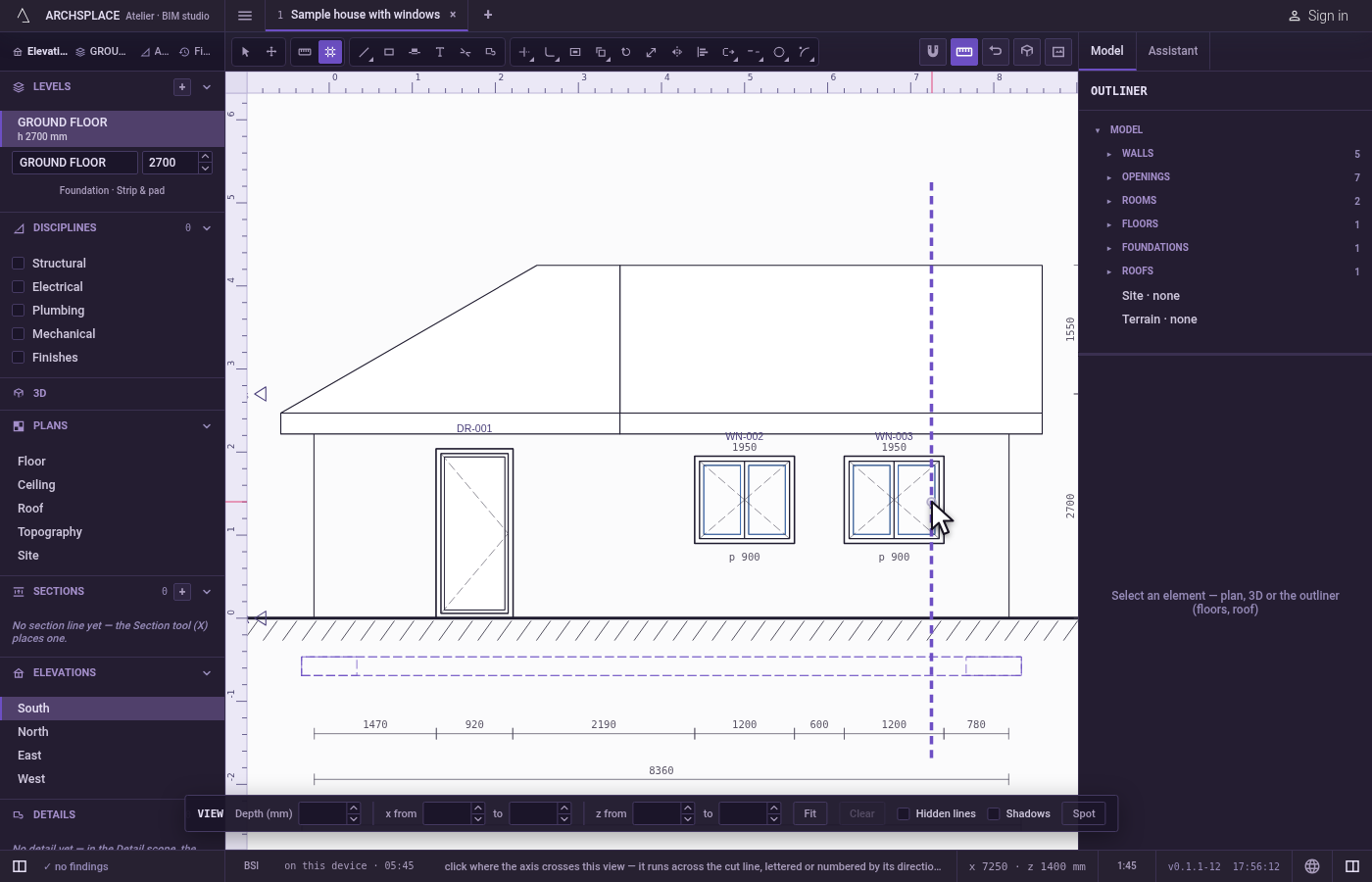
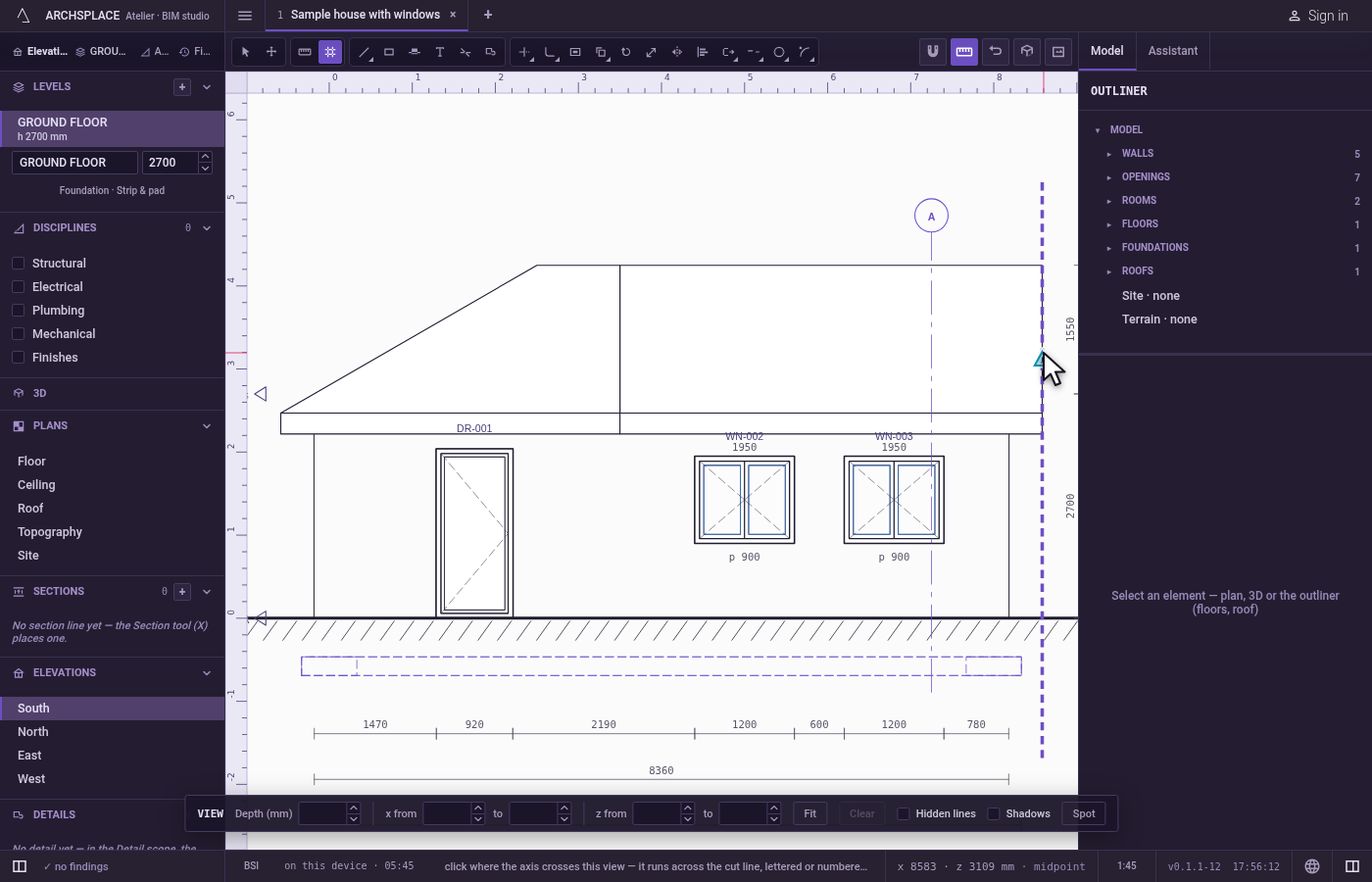
Click. The axis is placed. The view draws it through the drawing with its bubble above, and the floor plans draw it across the building. The tool stays in hand for another axis.
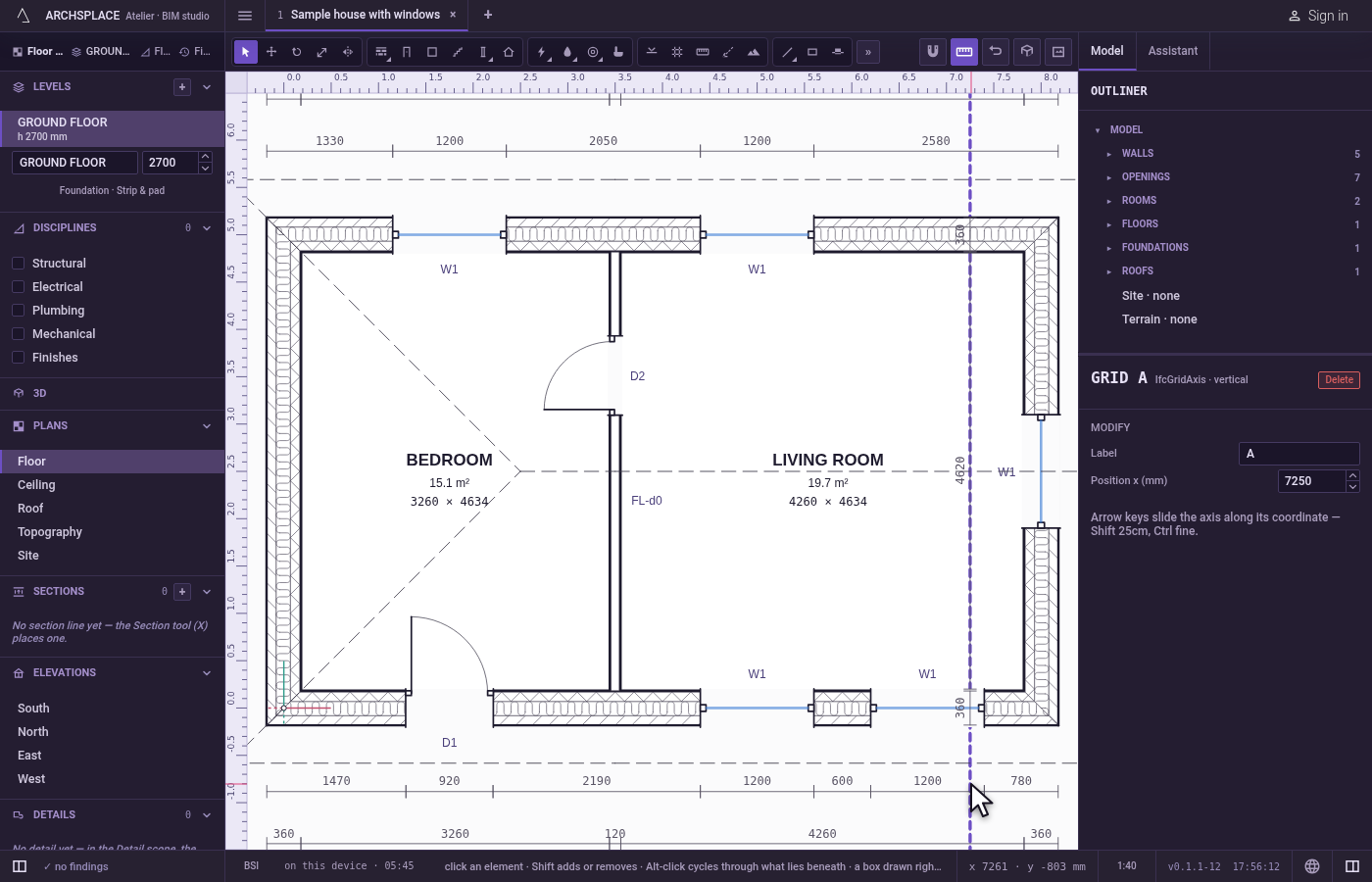
Adjust it from the plan or its panel. With Select, click the axis on a plan. Its panel offers its Label and its position, and the arrow keys slide it along its own coordinate.
What it refuses
- An axis at an angle. From a section or an elevation, an axis always runs square to the view. An axis at any other angle is placed on the plan, with the Grid tool's line option.
- Moving it with Move. A grid axis slides along its own axis only: the Move tool leaves it where it is and says to use the arrow keys or its panel.
- A grid in a callout. A callout's own view has no Grid tool.
- Being taken by a box. A box drawn with Select never takes a grid axis; click it to take it.
What it writes to the contract
Each click appends one axis to the contract's grids, with the world axis it fixes, its position in metres rounded to the centimetre, and its label:
axis: "X" is a line of constant x, placed from a view looking north or south, and lettered. axis: "Y" is a line of constant y, placed from a view looking east or west, and numbered. The drawing of the axis in each view is never written: it is worked out from this entry.
Common questions
How do I add a grid axis from an elevation?
Open the elevation, press A, and click where the axis should cross the view. The axis is placed at once, drawn on the elevation with its bubble and on every floor plan.
Why is my new axis numbered and not lettered?
The view decides which way the axis runs. Looking north or south, an axis across the view runs along y and takes a letter. Looking east or west, it runs along x and takes a number. A letter or number follows the count of axes of that kind already placed.
How do I move a grid axis afterwards?
Select it and use the arrow keys, which slide it along its own coordinate, or type its position in its panel. The Move tool leaves a grid axis where it is.