PlanVin the studio
Select
Select takes elements of the plan into your hands: a click takes what you point at, Shift adds or removes, Alt takes what lies beneath, and a box takes many at once. What is selected opens its panel on the right, and every other verb, from Move to Delete, acts on it.
What it is
Select is the plan's hand. It takes walls, openings, rooms, stairs, columns, beams, roofs, devices, pipes, fixtures, dimensions and every other element the plan draws, and it never changes anything by itself. What you select is lit on the plan, its panel opens on the right, and the other verbs act on it: Move, Rotate, Scale and Mirror, Copy and Paste, Delete, the arrow keys and the right-click menu.
The same rules hold in every view of the studio, so a selection made on the plan reads the same way in a section or in 3D. When several walls, pipes or beams are selected, the corners where they meet show grips you can drag (see Wall joints).
When to use it
- Opening an element's panel to read or change its type, its size or its phase.
- Gathering several elements before moving, copying or deleting them together.
- Picking a door that sits under a room's tint, or a device that sits on a wall, with Alt-click.
- Opening the edit scope of a stair, a roof or the terrain with a double-click or Enter.
The steps
Take the tool. Press
V, or click the Select button at the start of the toolbar. Esc also puts Select back in your hand from any other tool. The status bar at the foot of the window reminds you of the gestures: a click, Shift, Alt and the two directions of a box.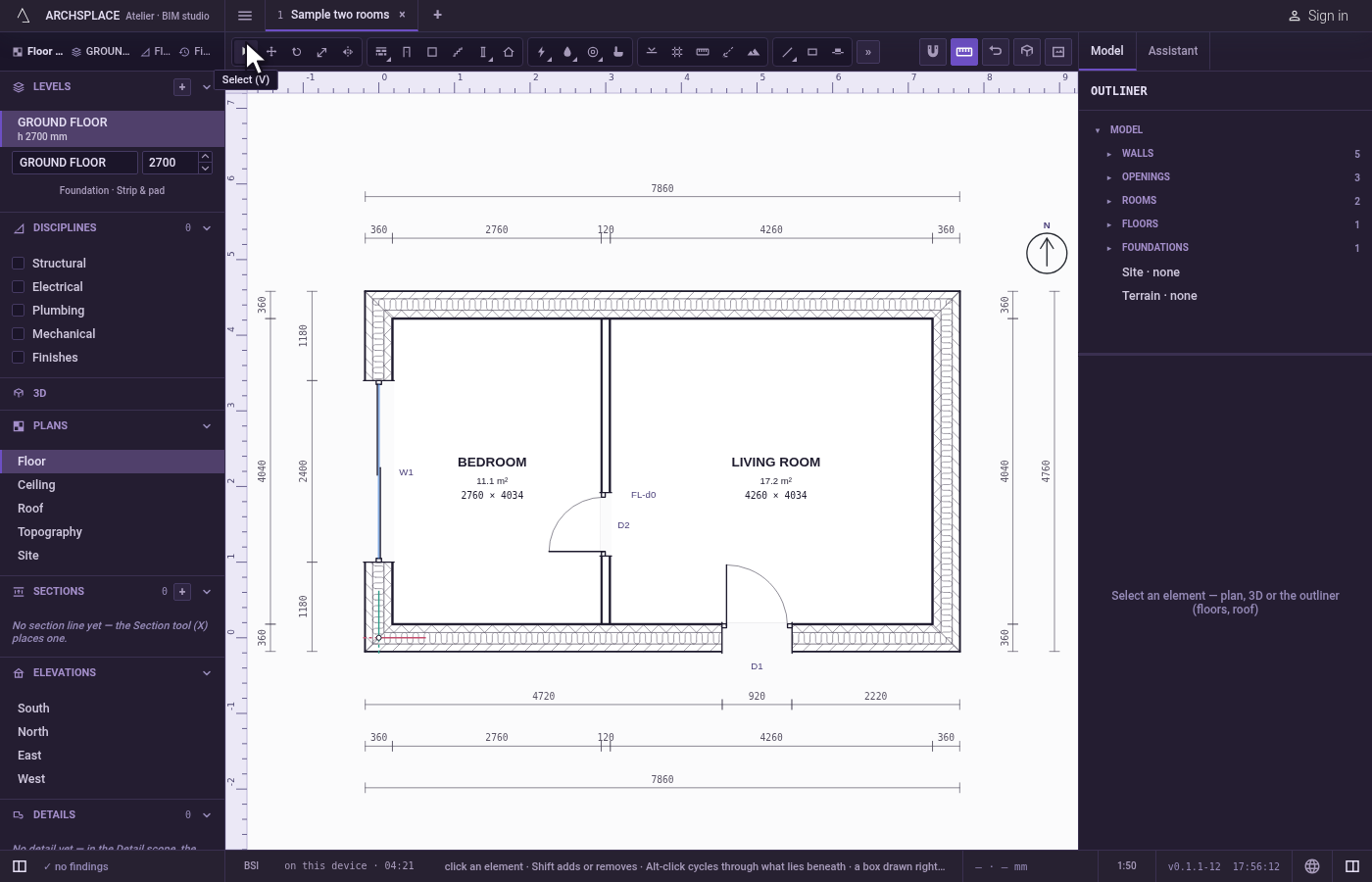
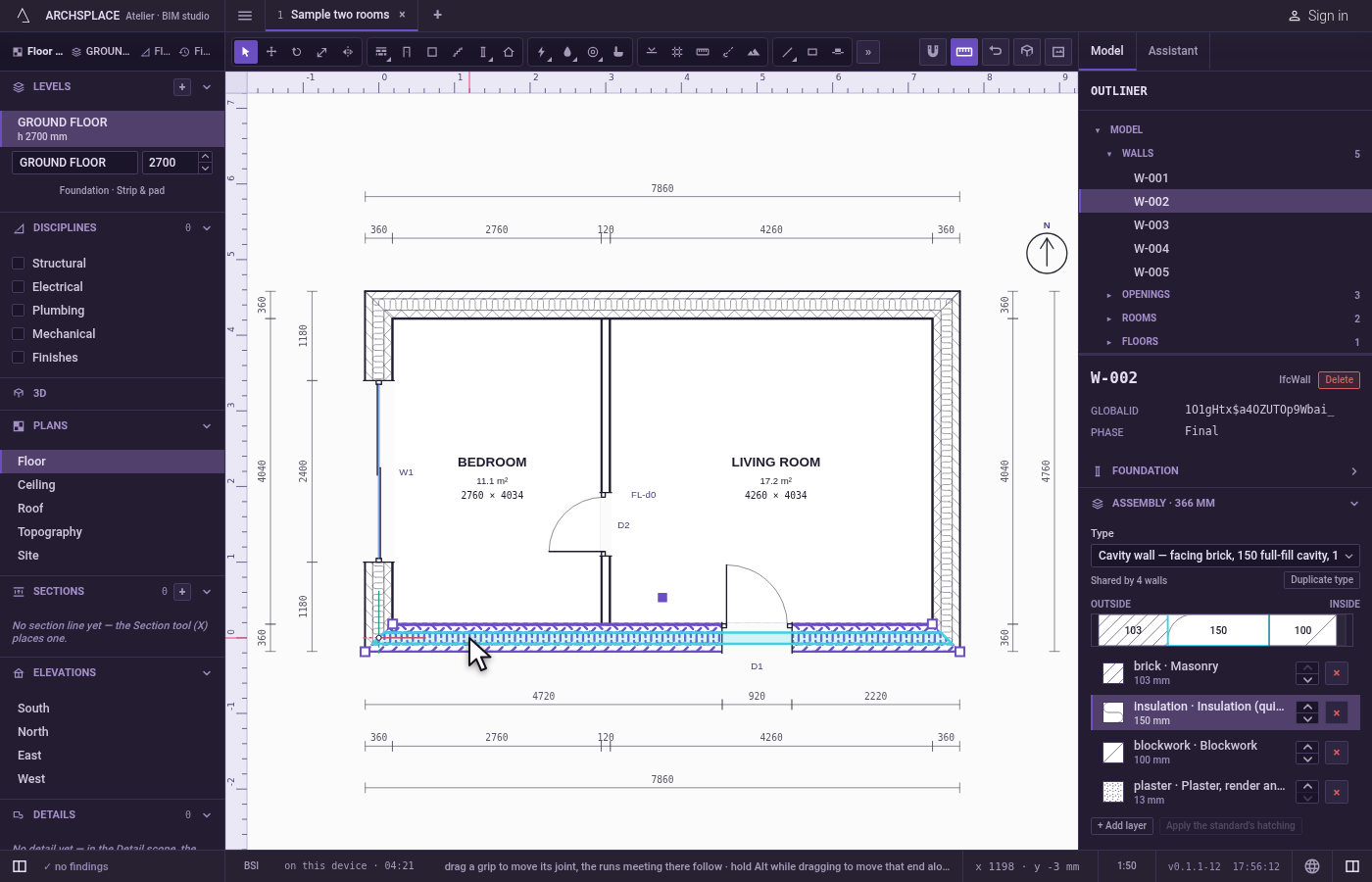
Click an element. The element under the pointer is lit while you hover, and a click takes it alone, dropping whatever was selected before. Its panel opens on the right. A click on a wall also opens, in that panel, the row of the layer the pointer was on.
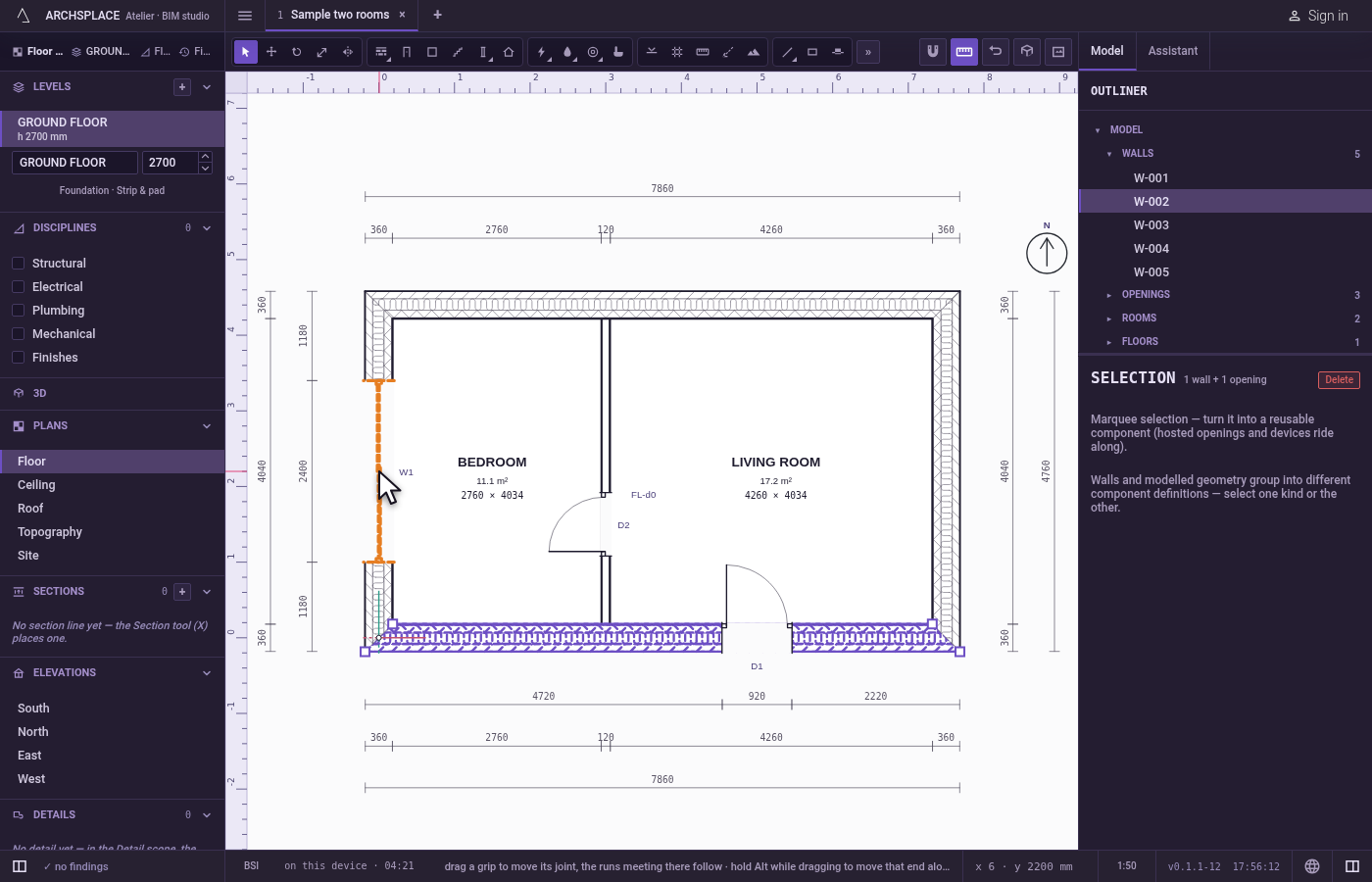
Add or remove with Shift. Shift and a click adds an element to the selection, or removes it if it was already there. A Shift-click on empty ground keeps the selection as it is.
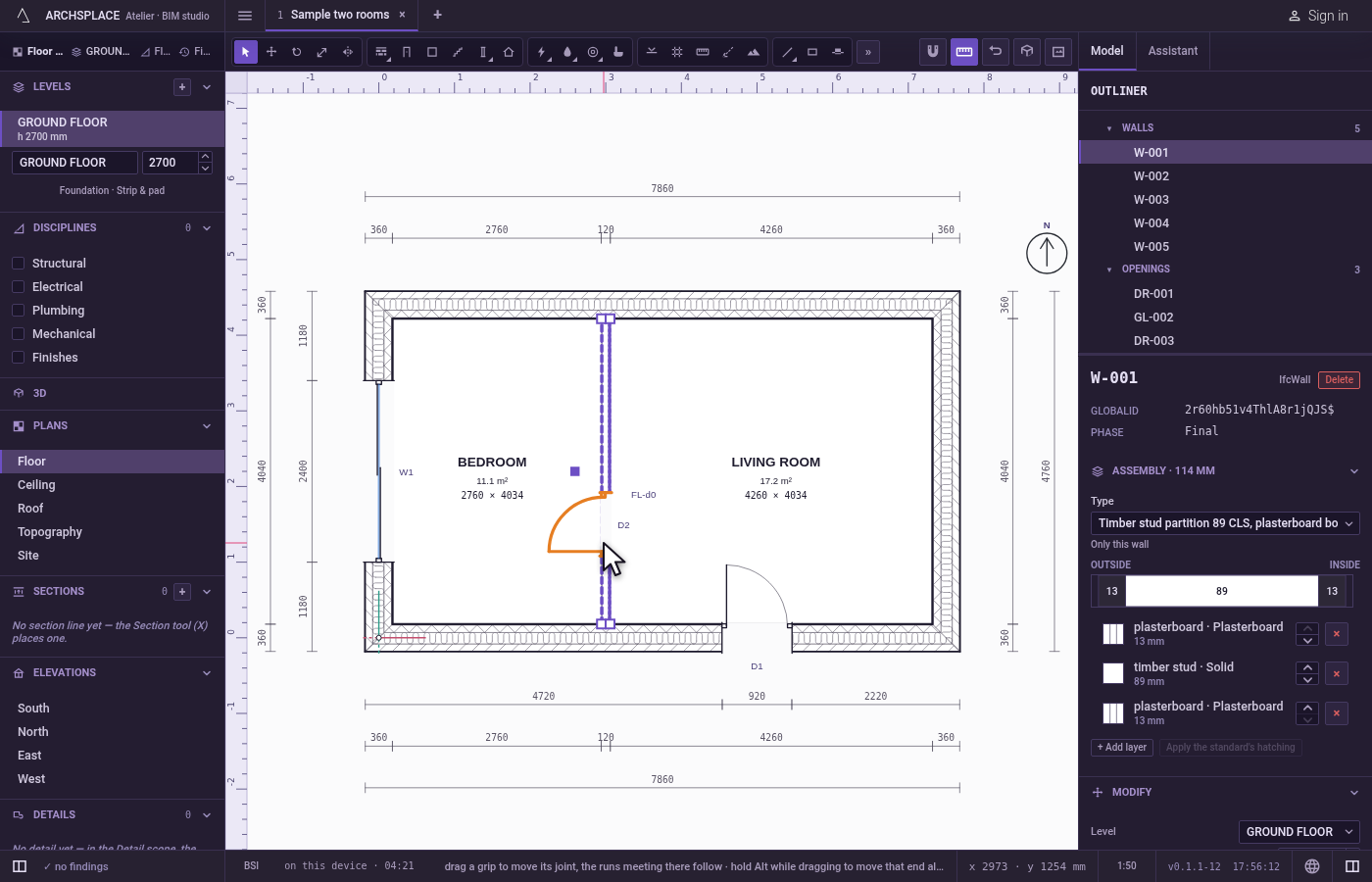
Reach what lies beneath with Alt. Where elements overlap, Alt and a click (Option on a Mac) takes the next one down under the pointer. Click again with Alt to go one deeper; after the last one it comes back to the top.
Drag a box for many. Press on empty ground and drag. Dragged to the right, the box takes what lies wholly inside it. Dragged to the left, it takes everything it touches. With Shift held, each element the box takes is flipped in or out of the selection.
Ctrl+A(⌘Aon a Mac) selects everything the view shows, as a box over the whole view would.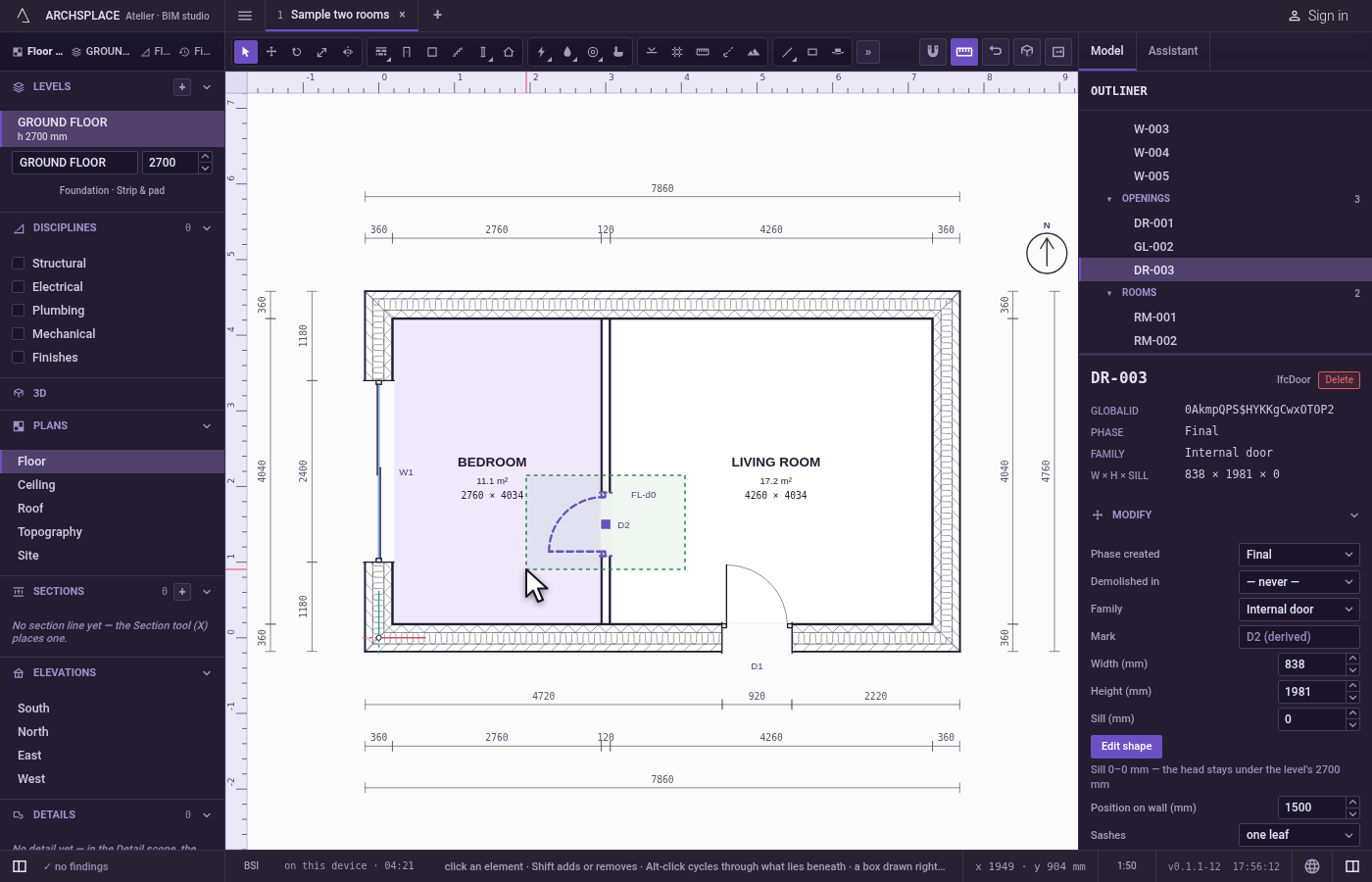
Act on the selection. Press
Deleteto remove it, the arrow keys to nudge it (Shift for bigger steps, Ctrl for finer ones), right-click for the menu of verbs, or arm Move, Rotate, Scale or Mirror. Double-click a stair, a roof drawn with its own footprint or the terrain to edit its points inside its own scope; Enter does the same for the one selected. Double-click a window or a door to redraw its shape on the elevation that shows it best.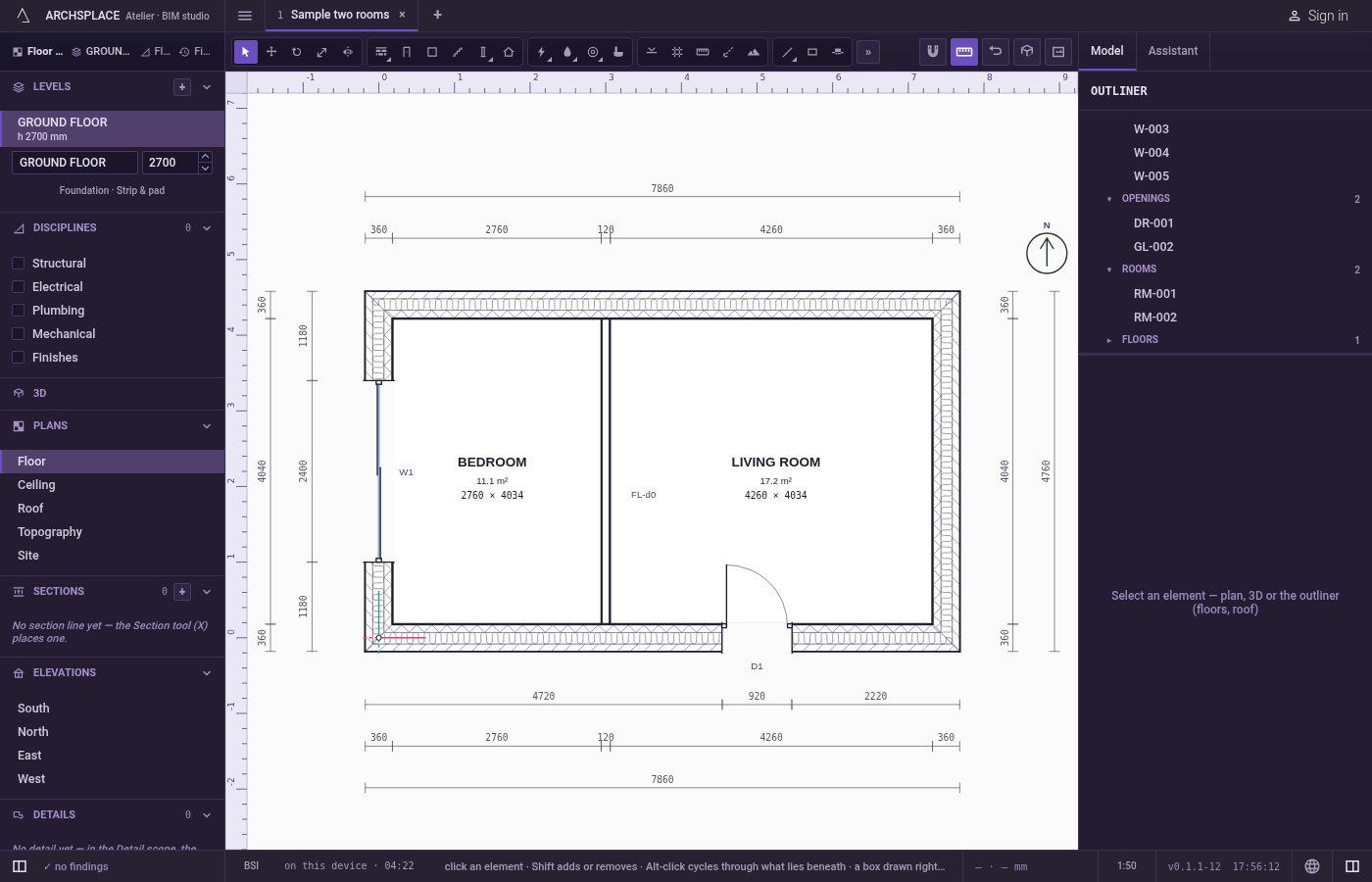
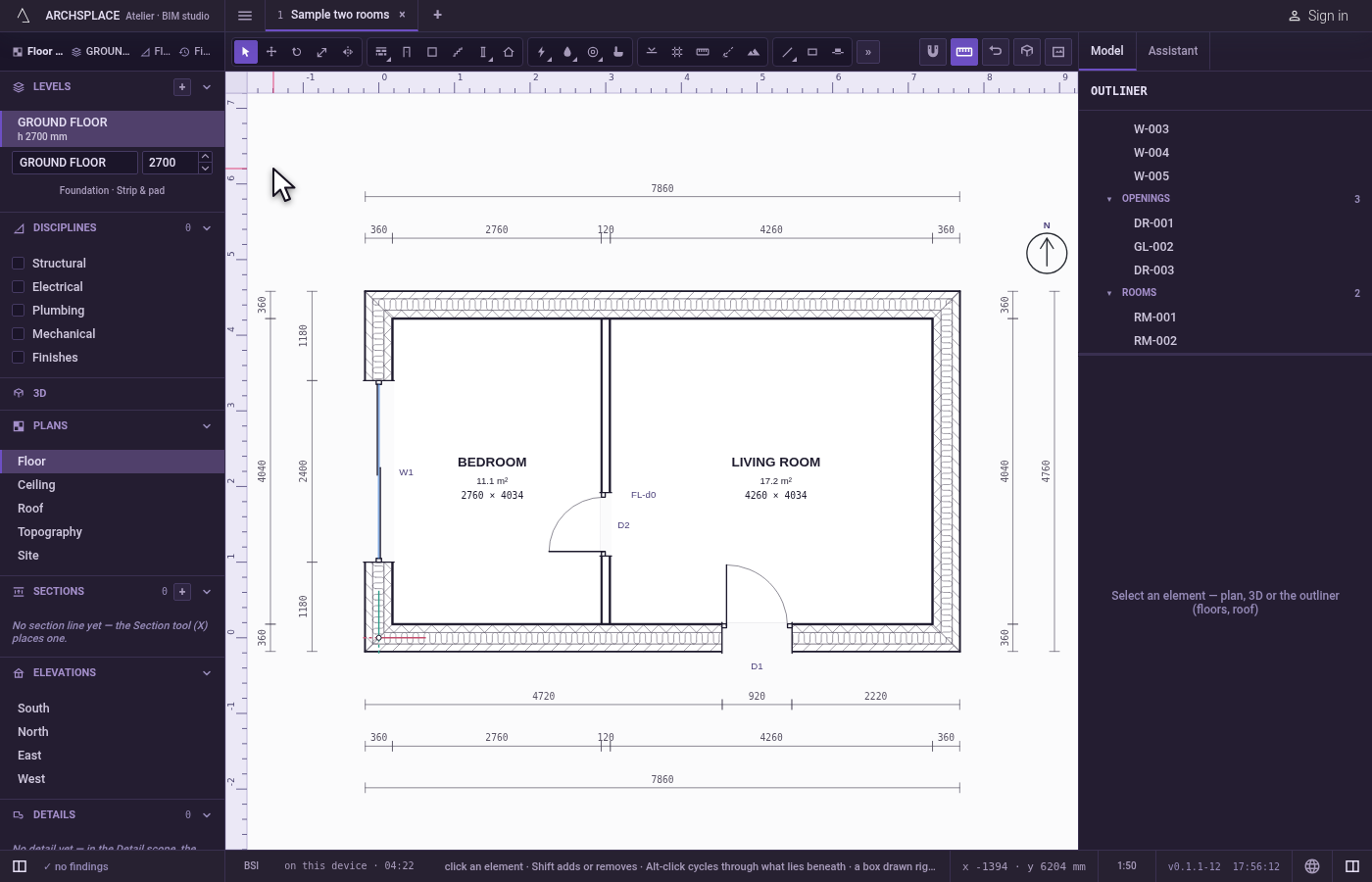
Let go of everything. A click on empty ground clears the selection, and so does Esc.
What it refuses
- A box over references. A box, and Select all, never take a level, a section or elevation line, a grid axis, a guide, a detail's frame, a pattern, the terrain or the underlay. Click them one at a time.
- Deleting what cannot go alone. Delete refuses, and says why in a message at the top right, for things that belong to something else: a slab follows its level's outline, a joint goes with the runs that meet there, the ground is deleted through its spot heights, the underlay is removed from the level's sidebar.
- A click while the plan shows no project. With no project open, the studio says so in the status bar and nothing can be taken.
What it writes to the contract
Nothing. A selection lives in the studio, never in the project. Only the verbs you use on it, such as Move or Delete, change the contract, each one as a single step that one undo takes back.
Concepts
Related
Common questions
What is the difference between a box dragged to the right and one dragged to the left?
Dragged to the right, the box takes only what lies wholly inside it. Dragged to the left, it takes everything it touches, even partly.
How do I pick an element hidden under another one?
Hold Alt (Option on a Mac) and click. Each Alt-click takes the next element under the pointer, and after the last one it starts again from the top.
Why does a box never take my section lines or my levels?
A box takes what the plan holds, never what it refers to. Levels, section and elevation lines, grid axes, guides, a detail's frame, a pattern, the terrain and the underlay are taken by a click alone, so Select all followed by Delete can never remove them.