SketchSCin the studio
Scale in the tile editor
Scale makes the joints you choose inside a pattern's tile larger or smaller about a base point, by a factor you drag or type. A reference length lets you scale from a length they already have to a new one, and circles and arcs stay round.
What it is
Scale resizes joints about a base point inside the tile. The base point stays where it is, and everything else moves towards it or away from it by the same factor. While you drag, the point of your joints farthest from the base point is the measure: bringing the pointer to that distance is a factor of 1. A ghost of the resized joints follows the pointer, and the hint shows the factor. Circles and arcs stay round.
It is the same Scale as in the other editors of the studio, acting here on the joints of the tile.
When to use it
- To make a motif larger or smaller by an exact factor.
- To bring a shape to a given size from a length it already has, with the reference length.
- To lay a resized copy beside the original.
The steps
Choose the joints. Select them before taking the tool, and Scale uses them at once. Otherwise Scale asks select objects: click joints to add them, or drag a box (to the right it takes what lies wholly inside, to the left what it touches),
Shifttakes a joint out,Fdraws a fence that takes every joint it crosses, andEnterends the choice.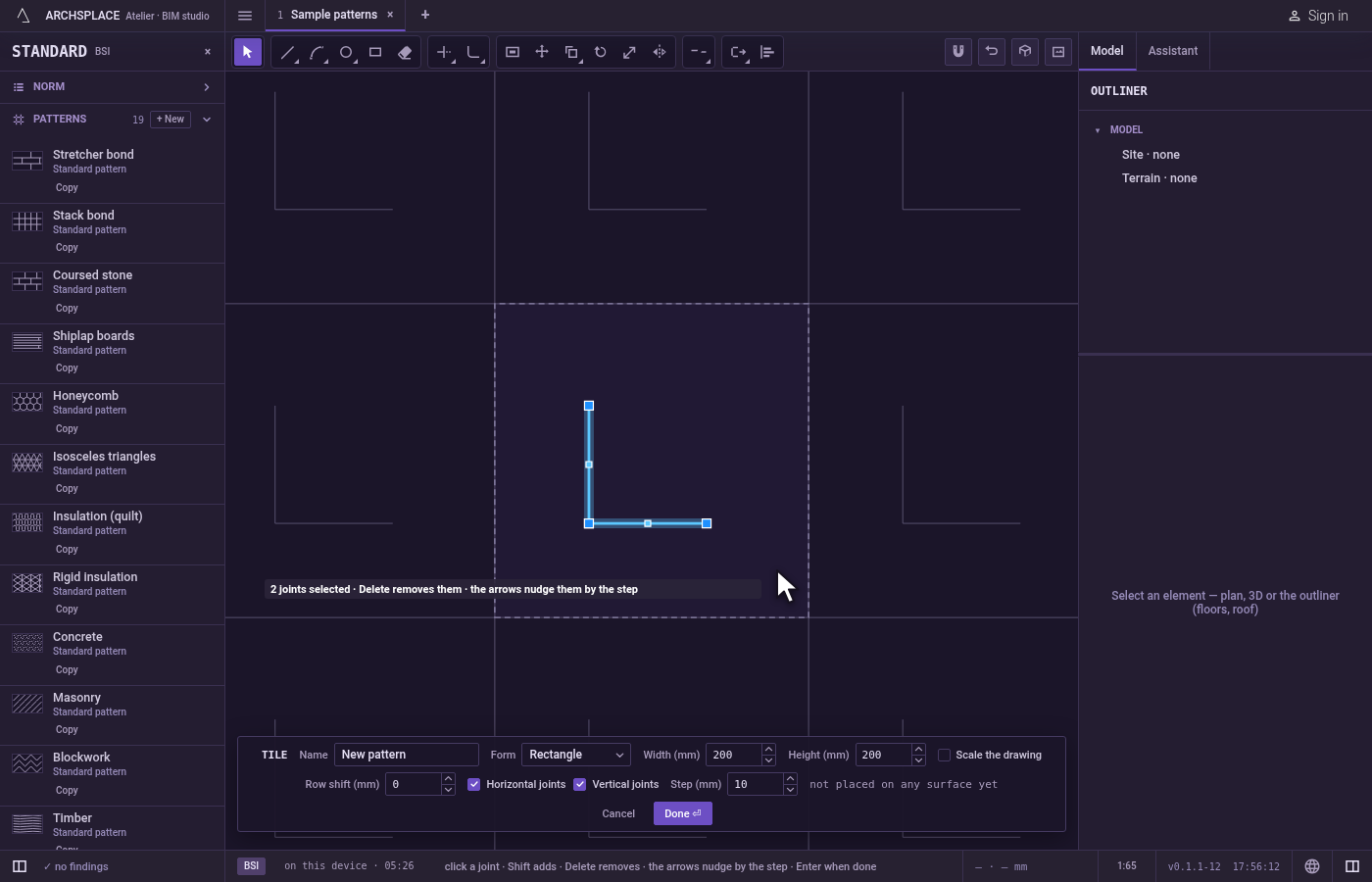
Take the tool. Type
SthenCone after the other, or click Scale on the bar. TheSopens Stretch for a moment, and theCcompletes Scale.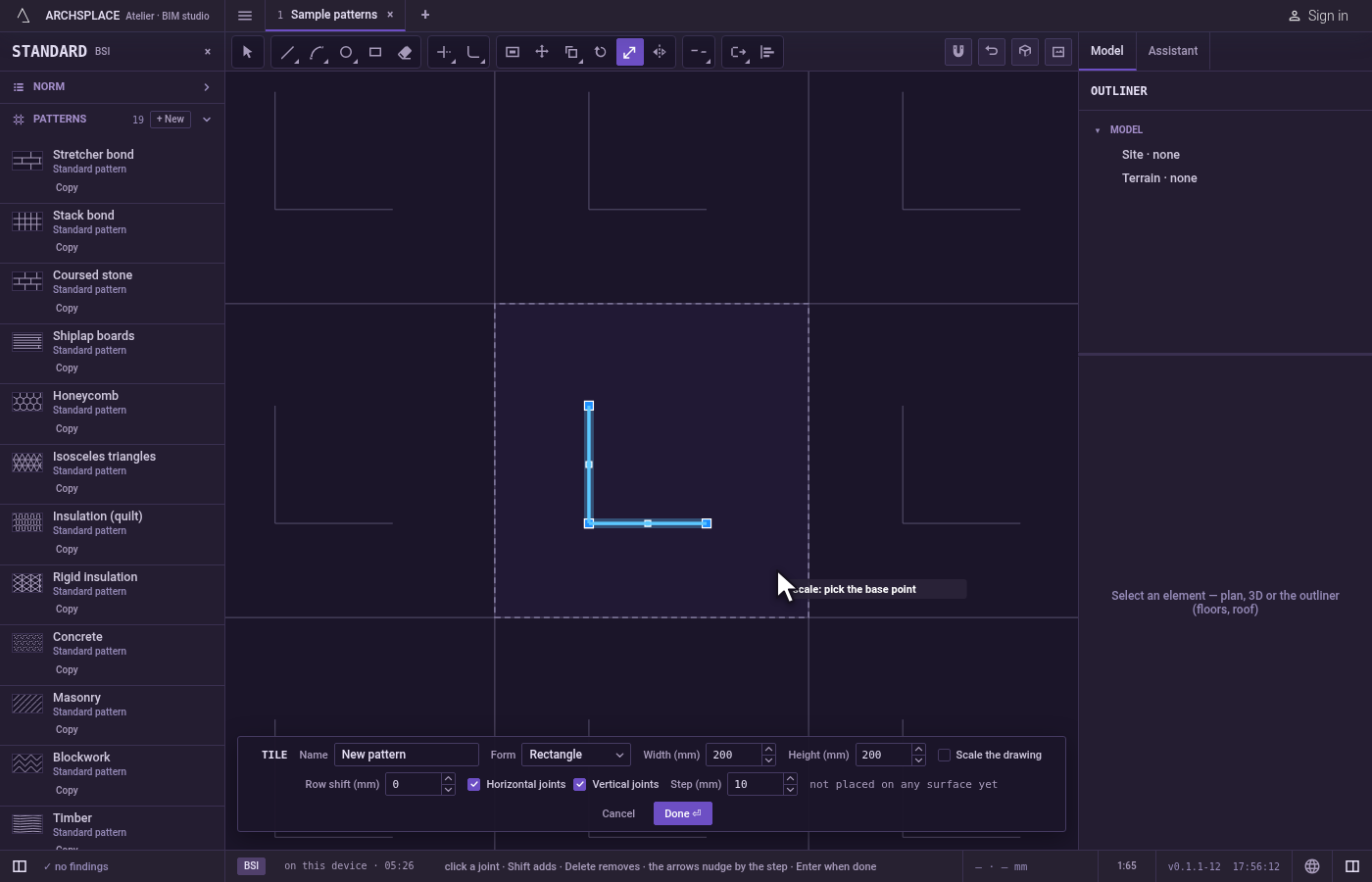
Pick the base point. Click the point that should stay where it is, such as a corner or the centre of the shape.
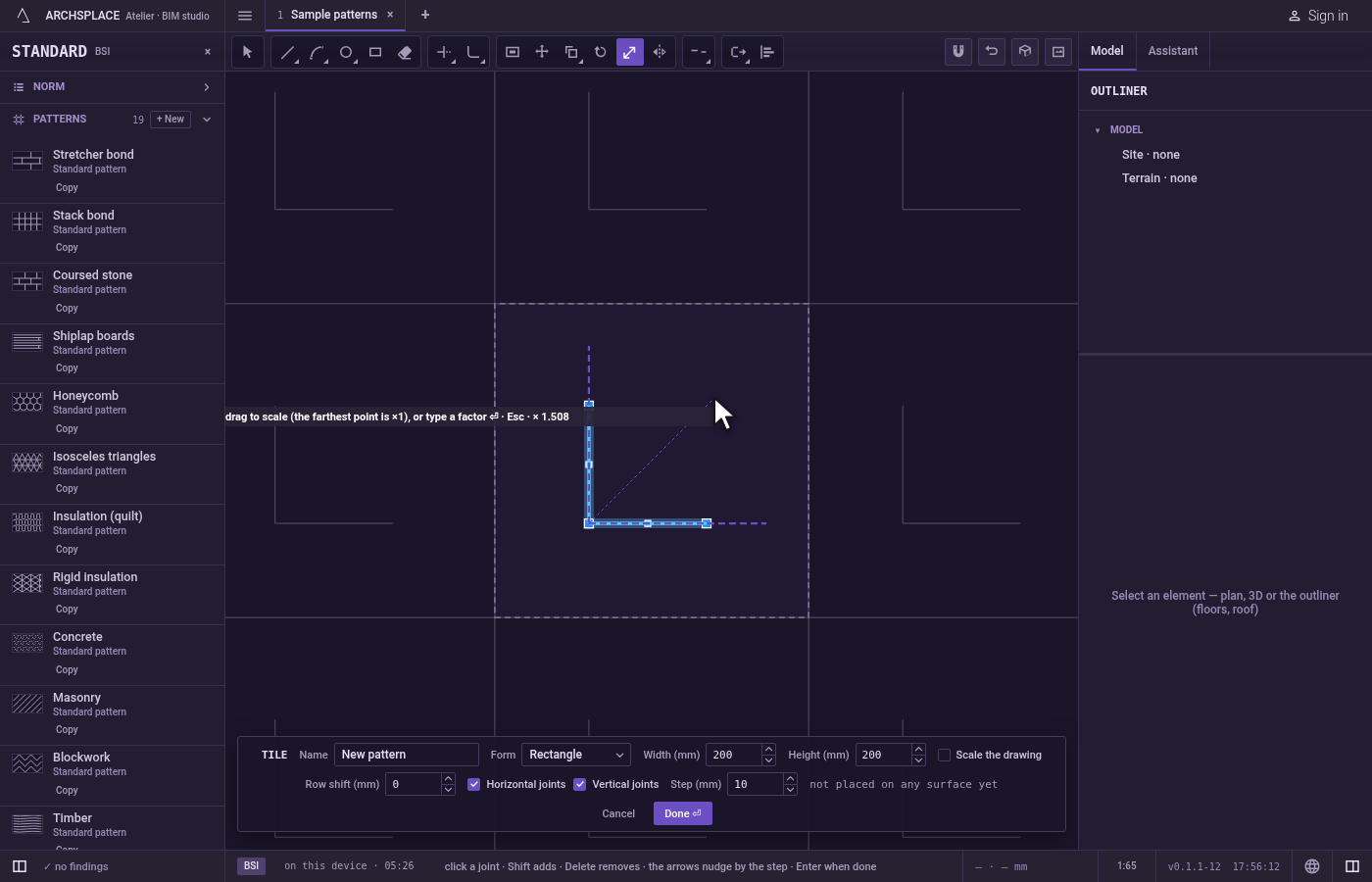
Give the factor. Drag: the hint shows the factor as the ghost grows and shrinks. Click to scale. To be exact, type the factor and press
Enter, for example2to double or0.5to halve.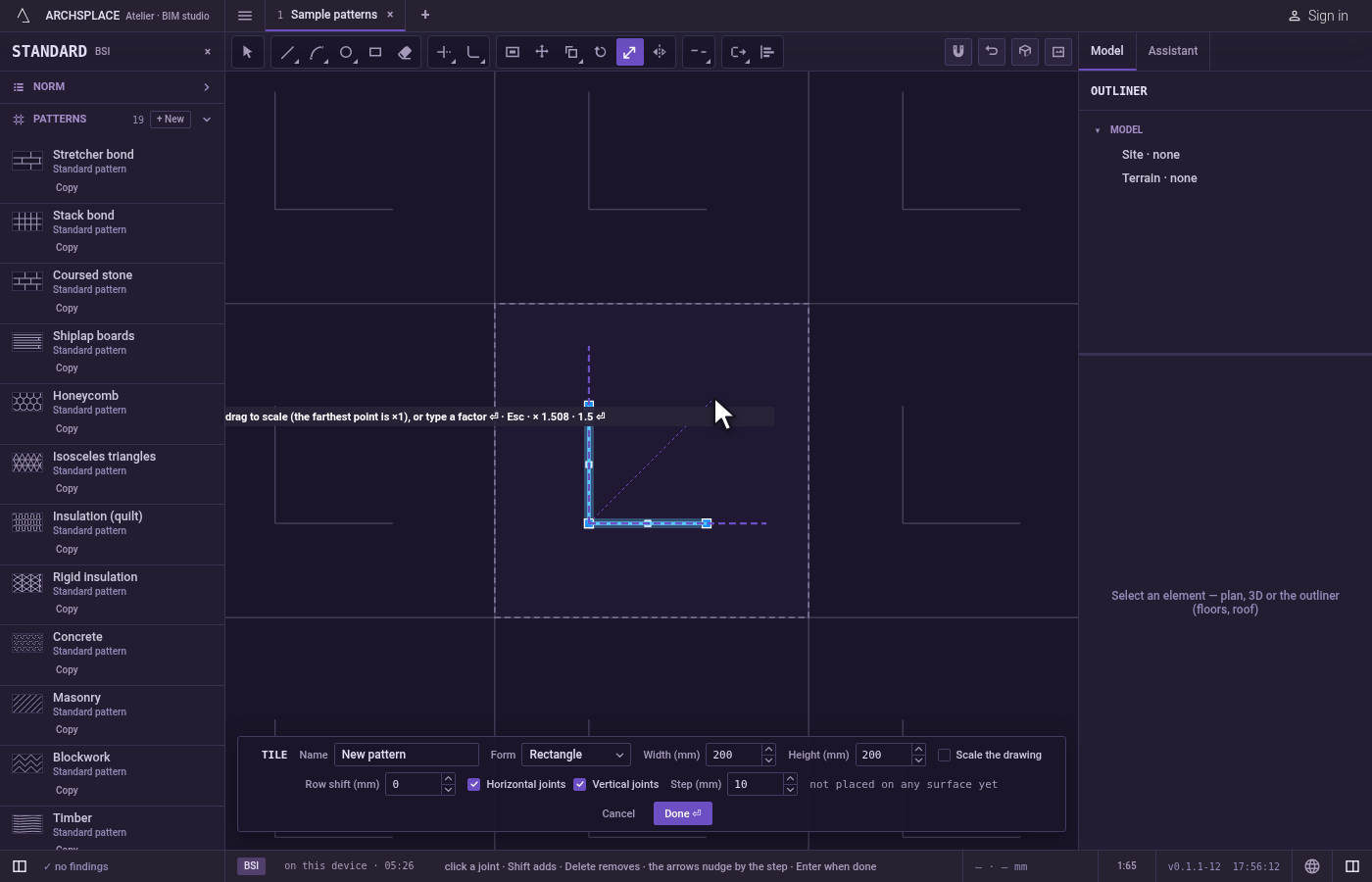
Scale from a reference, if you want. After the base point, press
R, then point the present length or type it and pressEnter. Then point the new length, or type it and pressEnter: the factor is the new length over the reference.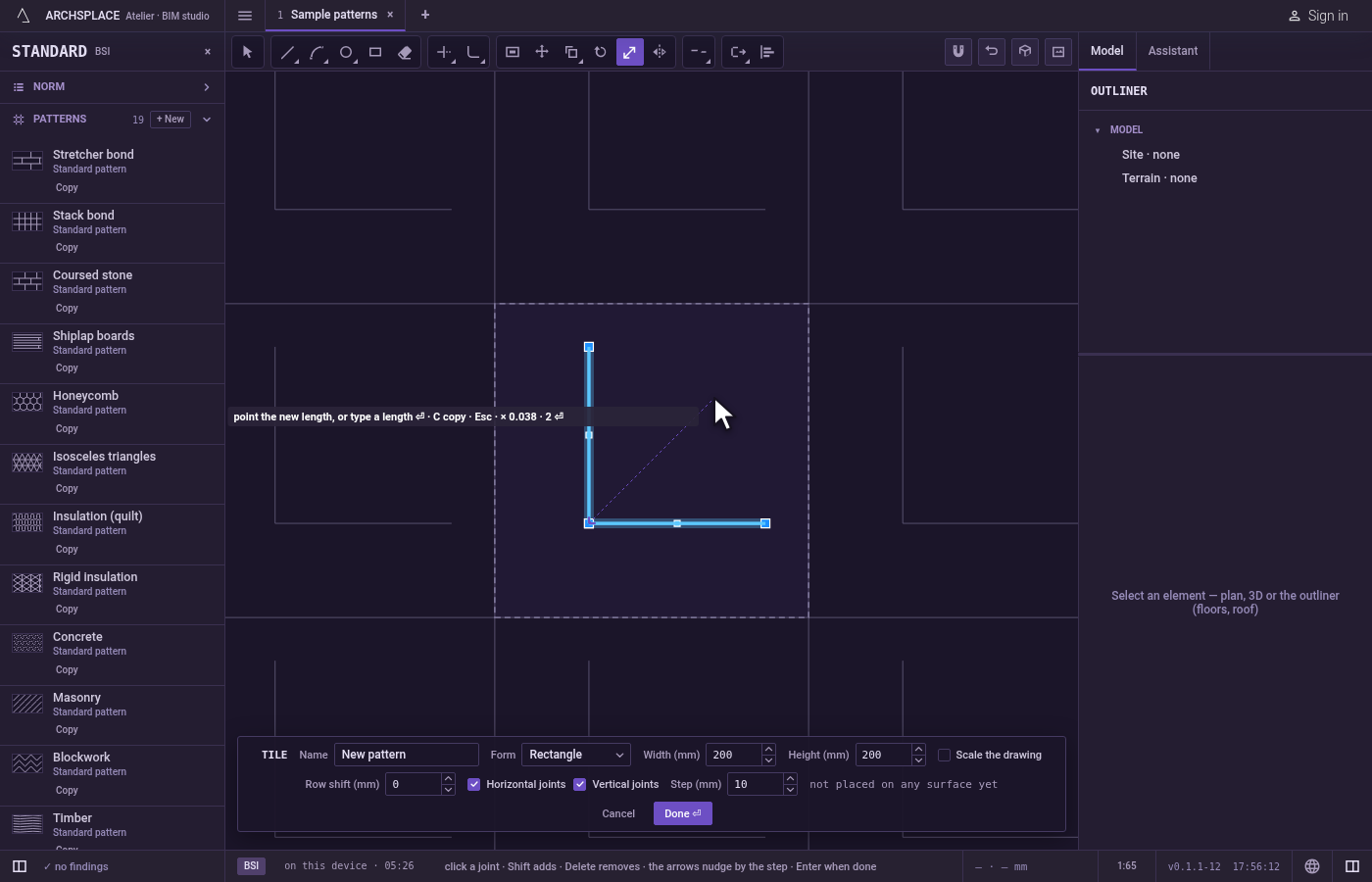
Copy, if you want. After the base point, press
Cto switch on copy: the resized joints are laid as a copy and the originals stay.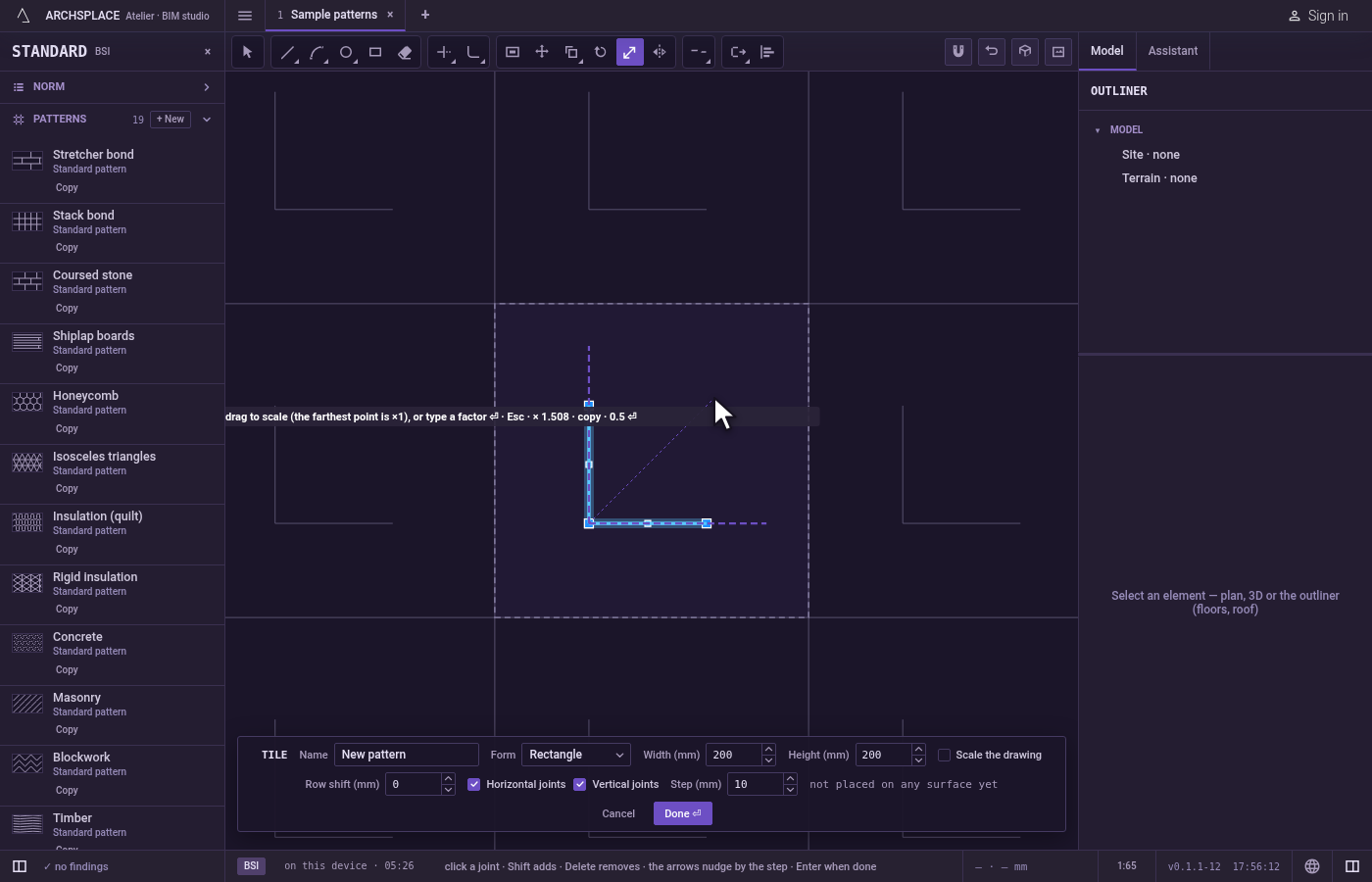
Scale again or finish. After scaling, the same joints stay selected and Scale asks for a base point again.
Escapesteps back (the reference, then the base point), then leaves Scale for Select.Ctrl+Zundoes the last change. Press Done on the bar at the foot to hand the tile back.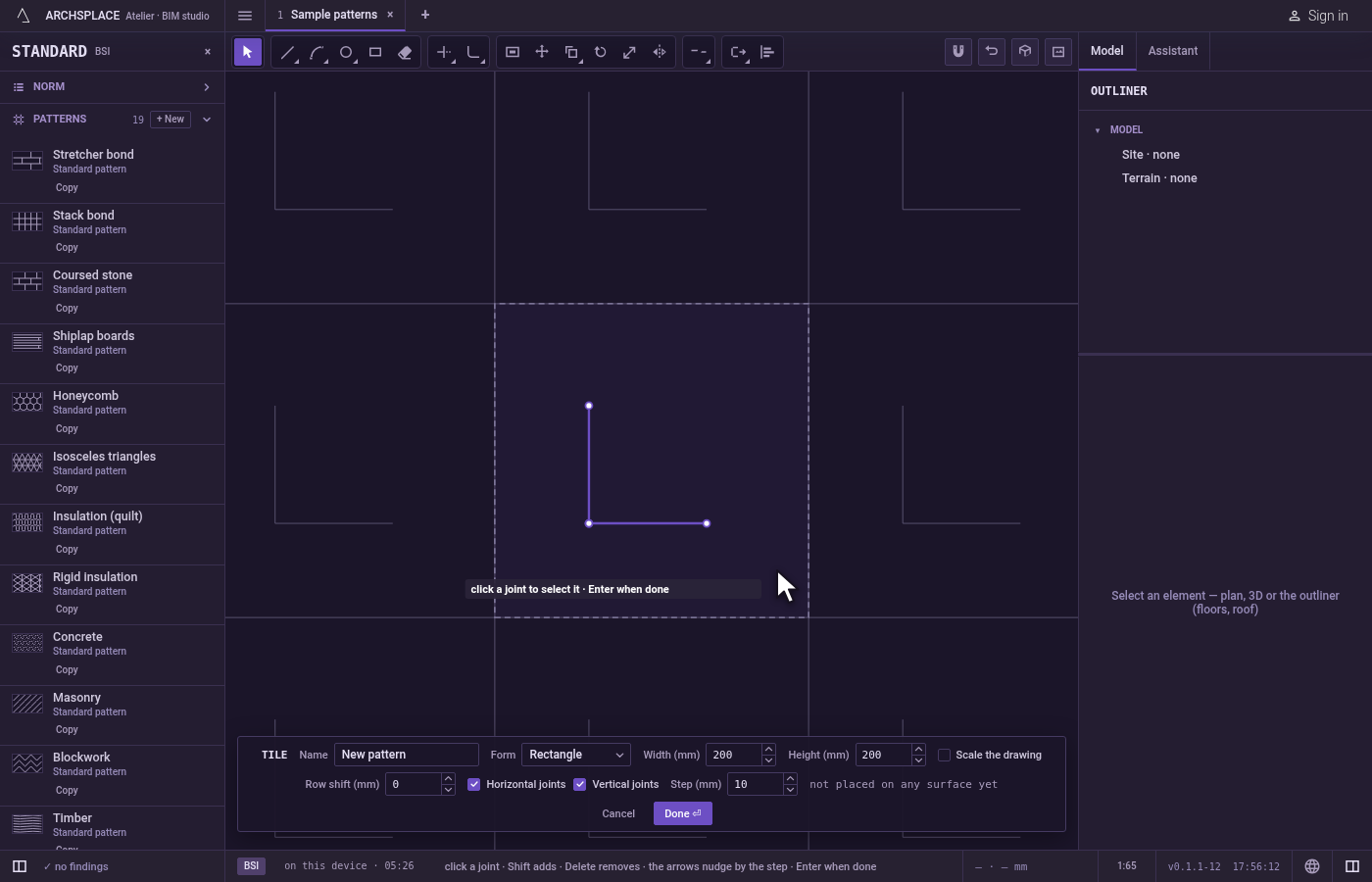
What it refuses
- A factor of zero or less. It does nothing.
- A shape that would leave the tile. A curved or closed joint that would stand outside the tile once resized is not scaled, and the editor says a shape must stay inside the module.
- A straight joint across the edge. It is not refused: once resized, it is cut at the tile's edge and only the part inside is kept.
- A piece under a millimetre. A joint scaled down below a millimetre is refused with a joint under 1 mm is refused.
What it writes to the contract
Nothing while you work: the change stays in the tile editor, where Ctrl+Z steps back through it. When you press Done, the whole tile is written to the project's patterns in one step you can undo, every joint as its points in metres from the tile's lower-left corner, the resized joints at their new size. A standard pattern is never changed: Done saves the project's own version of it under the same name, and every surface that lays it follows. Save as new writes a new pattern instead. Cancel writes nothing.
Related
Common questions
How do I make joints exactly half their size?
Select them, take Scale, click the base point, type 0.5 and press Enter.
How do I scale a shape so one of its sides gets a given length?
After the base point, press R, give the side's present length by pointing it or typing it, then type the length it should have and press Enter.
Is this the same as changing the tile's width and height?
No. Scale resizes only the joints you choose. To resize the whole tile with everything in it, switch on Scale the drawing on the bar at the foot and change the width or the height there.